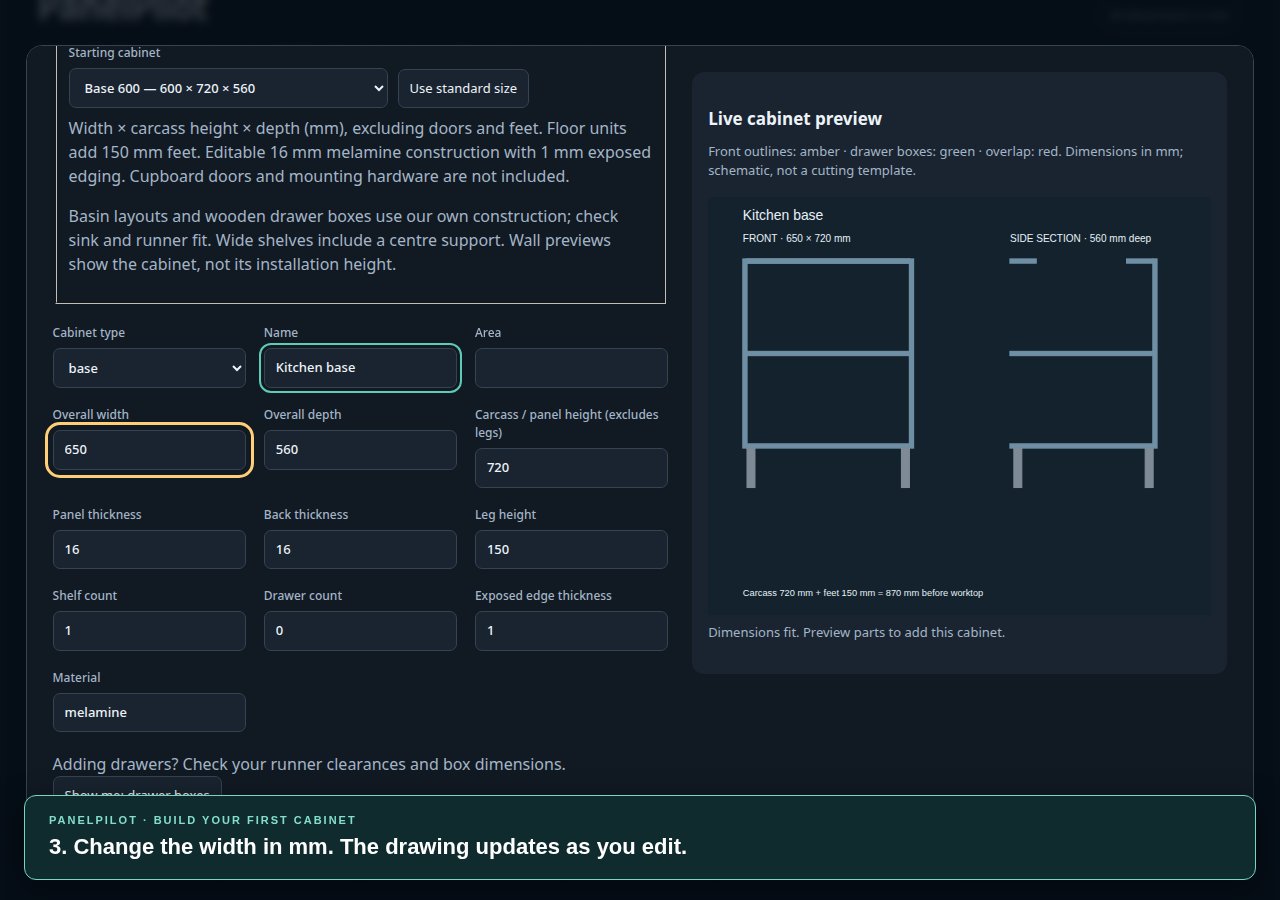
Create your first cabinet
Start with a standard size, name your cabinet and review its parts.
30.4 seconds · Captions & written stepsCreate cabinet parts lists, optimise sheet cutting layouts and plan timber or steel cuts in your browser. Choose metric or imperial measurements, allow for blade kerf and keep your projects together.
Sign in with Google to save your projects. Work in millimetres or inches. Keep your draft in this browser.
Five short demos with gentle background music and on-screen instructions. Choose a task for captions and written steps, and press play when you’re ready.
Start with a standard size, name your cabinet and review its parts.
30.4 seconds · Captions & written steps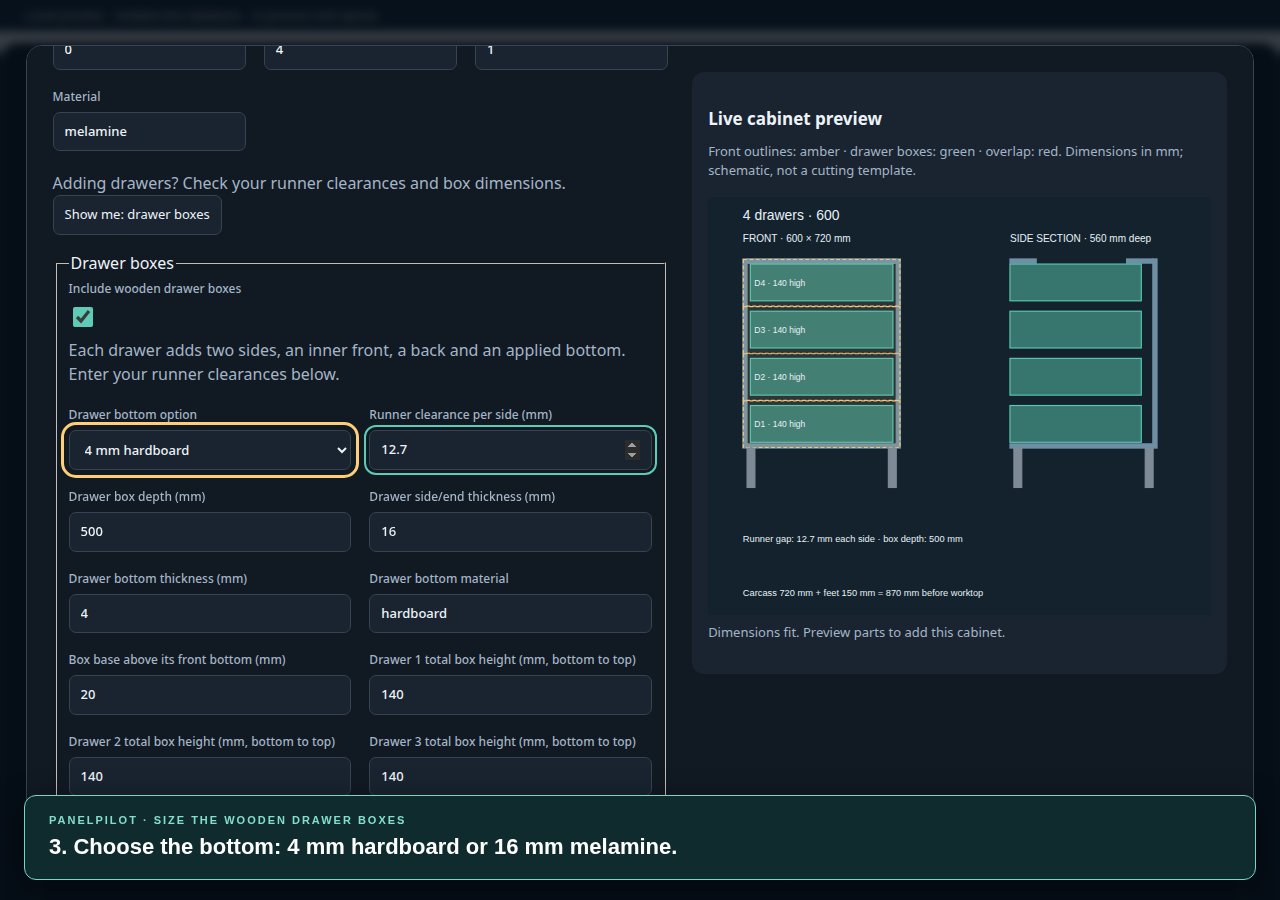
See where runner clearances, box heights and bottom thickness belong.
31.6 seconds · Captions & written steps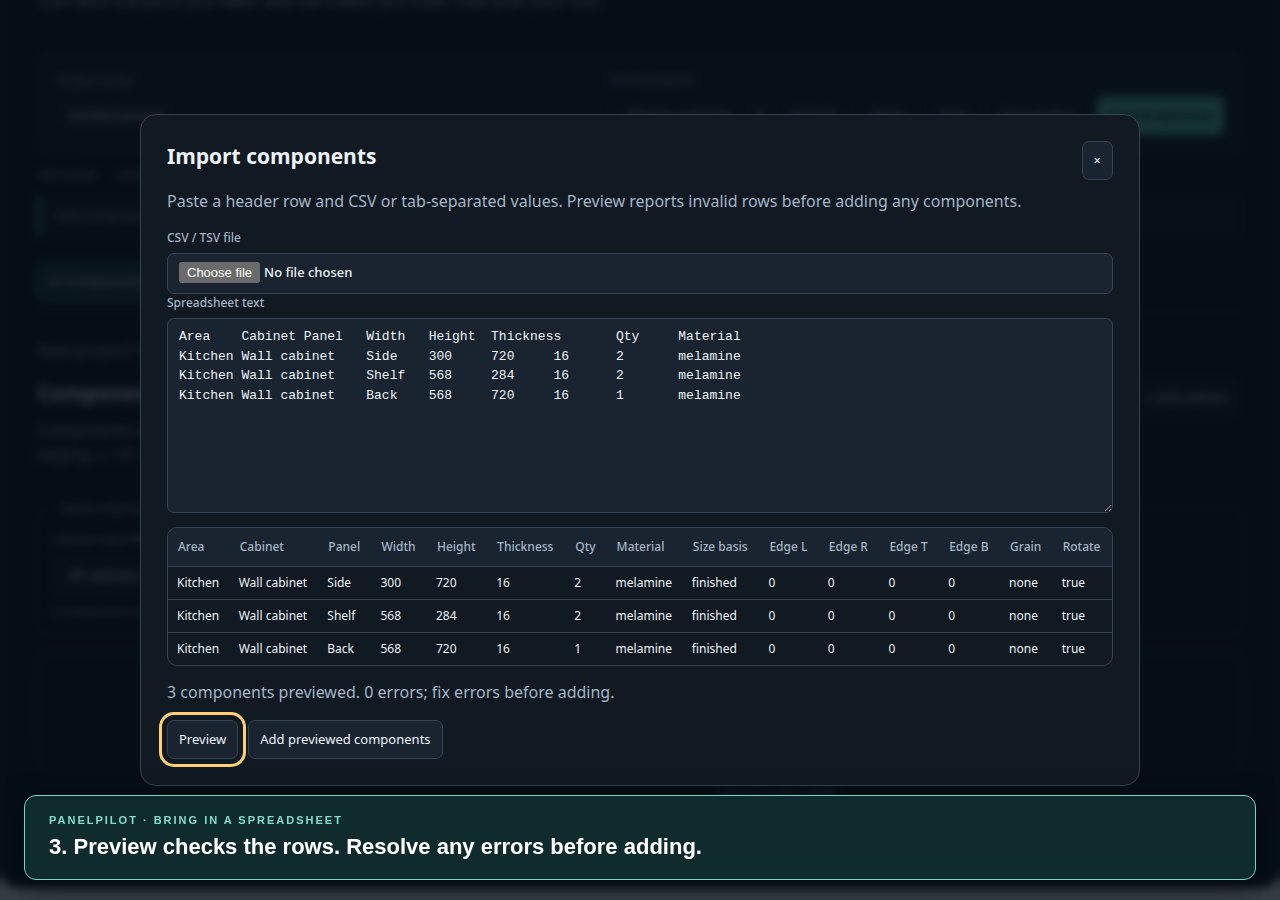
Preview a CSV or pasted table before adding it to your components.
31.2 seconds · Captions & written steps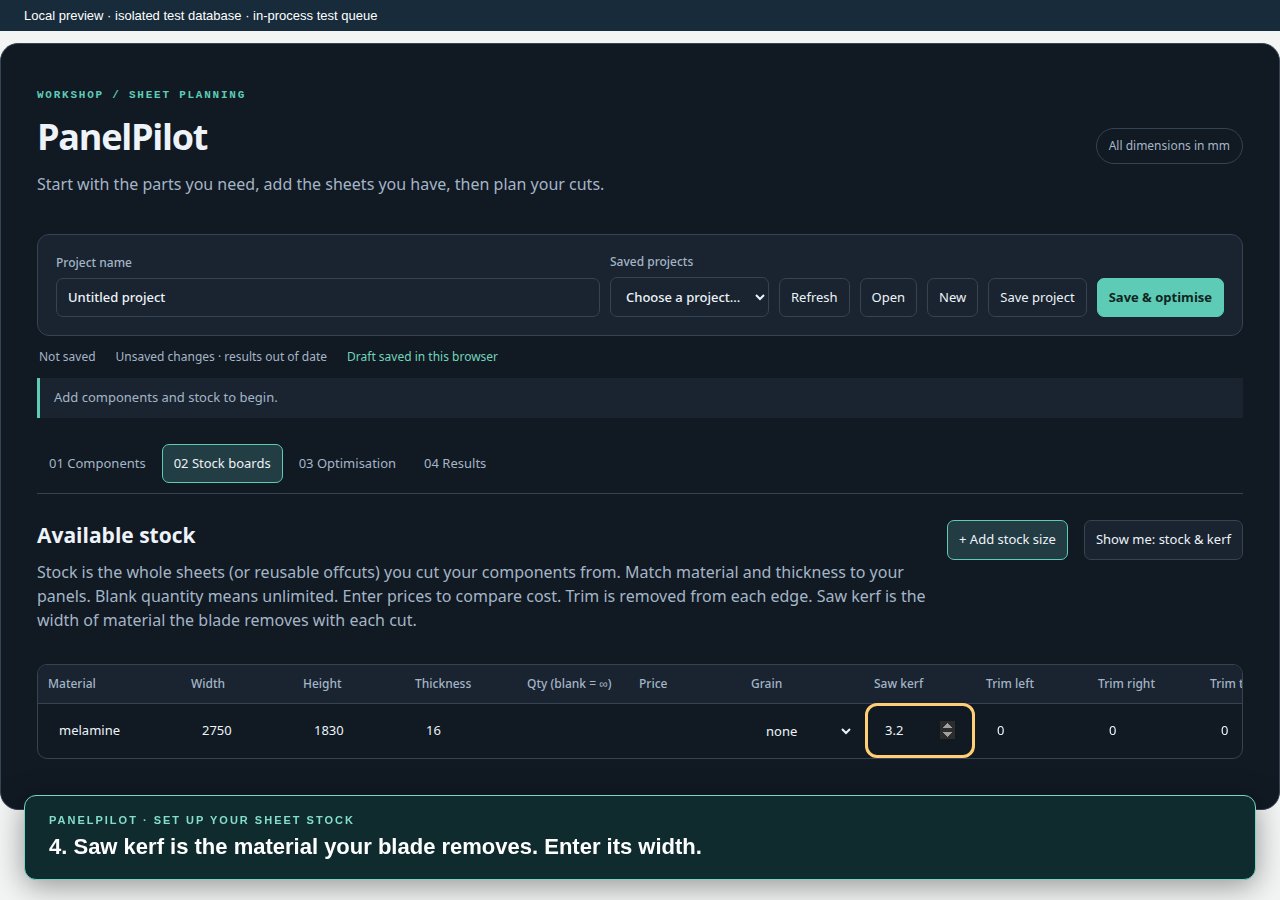
Match your sheets to your parts and allow for the material your blade removes.
34.8 seconds · Captions & written steps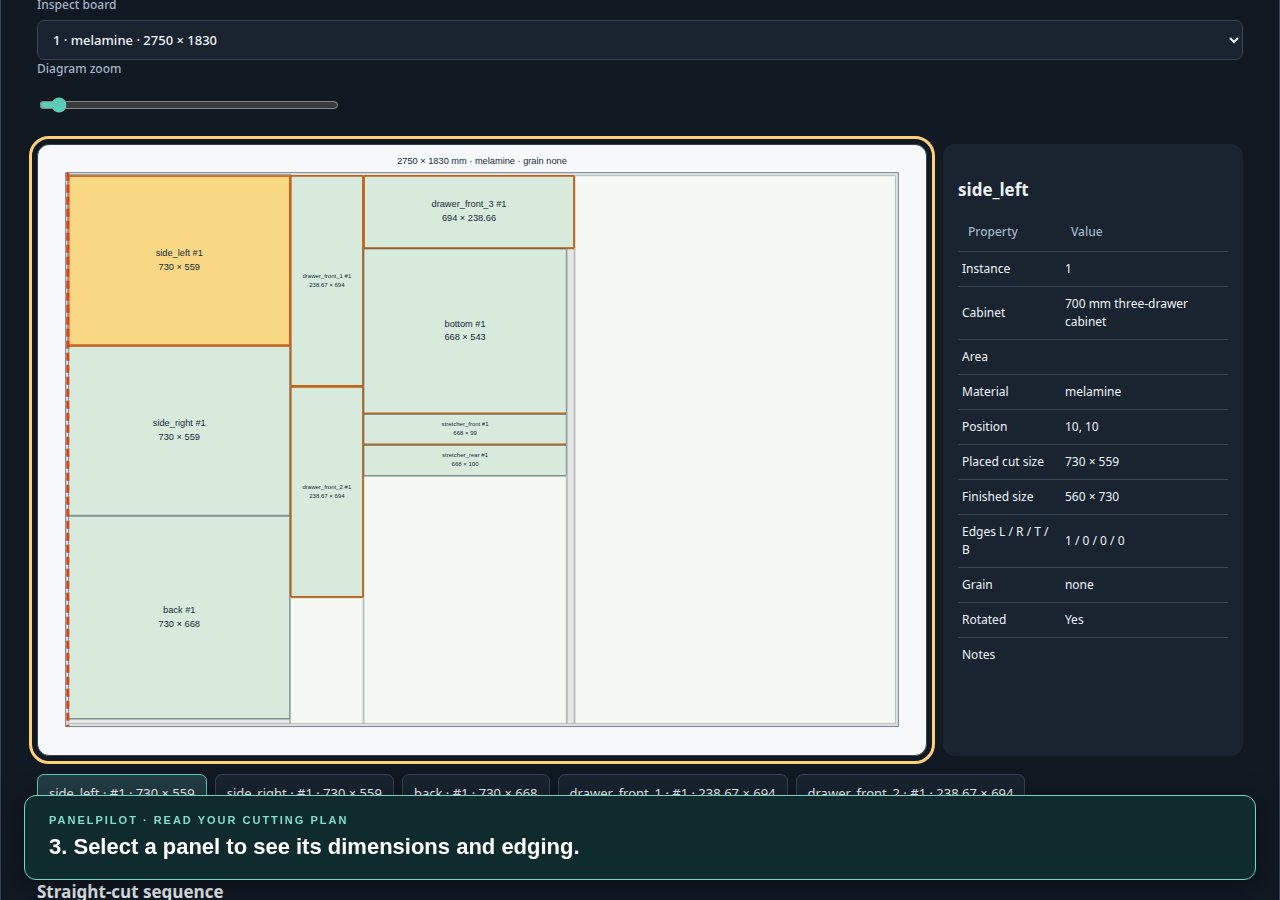
Inspect layouts and unplaced parts, then export or print for the workshop.
30.4 seconds · Captions & written stepsAdd sheets, timber or steel from the stock library, or enter your own sizes. Set the quantities, blade kerf and trim for the stock in your project.
Start with a cabinet preset, enter parts or import a spreadsheet. Choose materials from your project stock, then adjust dimensions, shelves and drawers in the preview.
Compare sheet layouts, inspect the straight-cut sequence and see reusable offcuts. Export cutting data or print layouts and part labels.
Start with familiar sizes, then make them fit your project. The details that change the cut list stay in your hands.
Explore the planner →Base, wall, pantry, basin and drawer presets, plus open-bottom robot cabinets and replacement panels. Review generated components in collapsible groups.
Set runner clearance, box depth, individual drawer heights and bottom thickness. Preview the fit before adding the parts.
Browse common metric stock sizes, then edit them to match your materials. Optimise sheet layouts and cut-to-length parts in the same project, with separate material usage and printable cutting plans.
Work with finished or raw panel sizes, specify edging per side and control grain and rotation. Choose sheet usage, cost or cutting effort as your optimisation objective.
Yes. Paste a table or import a CSV or TSV file from Components. Preview the imported rows before adding them. Include panel width, height, quantity, thickness and material; you can also supply cabinet names, areas, edging and grain.
The planner automatically saves a draft in this browser, including unfinished cabinet settings. Use Save project to keep project revisions, and export project JSON for a portable backup. Browser drafts depend on local storage; saved projects belong to your account and are available when you sign in on another device. Clearing browser data removes local drafts.
Check your measurements, material thicknesses, edging, blade kerf and hardware clearances. Layouts use straight guillotine cuts and show parts that could not be placed. Optimisation searches for a useful arrangement; it does not guarantee the absolute minimum waste. Cabinet previews are schematic, and sink cutouts and hardware machining need separate preparation.
Sign in with your verified Google account. Cupboard presets generate carcass parts; decorative cupboard doors and hardware are not included. Drawer presets include drawer fronts and configurable wooden boxes.


KerfGuide is developed by GooseNest in collaboration with TechnoCore. Powered by the Axion platform, it brings cabinet design, component lists and sheet optimisation together in one practical planning tool.
Start with a cabinet, a spreadsheet or a single panel.